Guide
How to Convert iPhone HEIC Photos to JPG (Fix Photos That Will Not Open)
July 16, 2026
You move a photo from your iPhone to your computer and get “this file format is not supported.” Or you try to upload a photo to an official site and it rejects everything except JPG. The cause is the file format. iPhones save photos as HEIC, and plenty of programs and websites still cannot read it.
The fix is simple. Convert the HEIC to JPG, which almost everything can open.
What is HEIC?
HEIC is Apple’s high-efficiency image format. It stores the same quality in a smaller file, which saves space on your iPhone. The catch is compatibility. Older versions of Windows, some government and banking sites, and certain apps still cannot open HEIC. That is why you see “the photo will not display” or “upload failed.”
JPG has been the standard for over twenty years, so it opens virtually everywhere. One conversion usually solves the problem.
Convert right in your browser
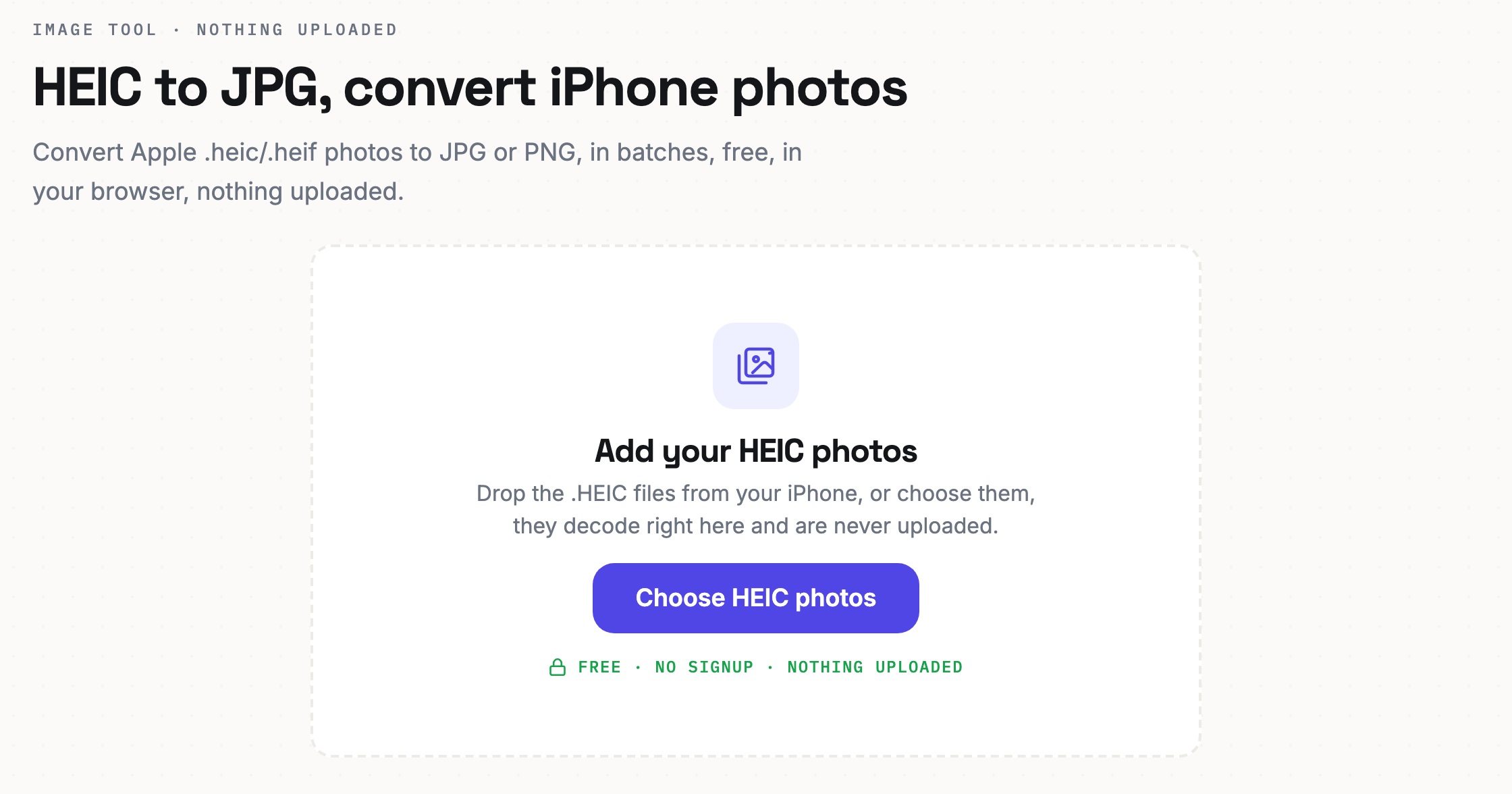
Drop your HEIC files in and get JPGs back. You can add many photos at once.
- Open the HEIC to JPG tool. The button below opens it.
- Drop in your HEIC photos. Select many at once if you like.
- Download as JPG. When the conversion finishes, save each photo as a JPG, or grab them all together.
Your photos are not uploaded. Because the conversion runs inside your browser, you can safely convert photos with faces or an ID in them.
How to avoid it next time
If converting each time is a hassle, you can set your iPhone to shoot in JPG from the start.
Go to Settings, then Camera, then Formats, and choose "Most Compatible." New photos will be saved as JPG. The trade-off is a slightly larger file size.
Photos you already took stay as HEIC regardless of this setting, so convert those with the tool above.
Common questions
Can I convert many photos at once? Yes. Drop in several files and convert them all in one go.
Does the quality drop? Converting to JPG adds a tiny bit of compression, but it is hard to notice by eye. For documents and uploads it is not an issue.
Where are my photos sent? Nowhere. The conversion happens only on your device.
A photo that would not open works the moment you convert it to JPG. Try it now.