Guide
How to Merge PDFs for Free, No Install or Signup
July 16, 2026
Two contract pages, a scanned ID, an application form. The instructions say “submit as a single PDF,” but your files are scattered across folders. Search for a way to merge PDFs and most results push you toward installing software, creating an account, or paying. You need none of that.
This guide shows you how to combine several PDFs into one without installing anything and without logging in, right in your browser. Because the files are never uploaded, you can handle sensitive documents like contracts and IDs with confidence.
Why online converters feel risky
Most “merge PDF” sites upload your files to their servers, combine them, and send the result back. It is convenient, but it means your contract and ID pass through someone else’s server. You cannot see when, or whether, they are deleted.
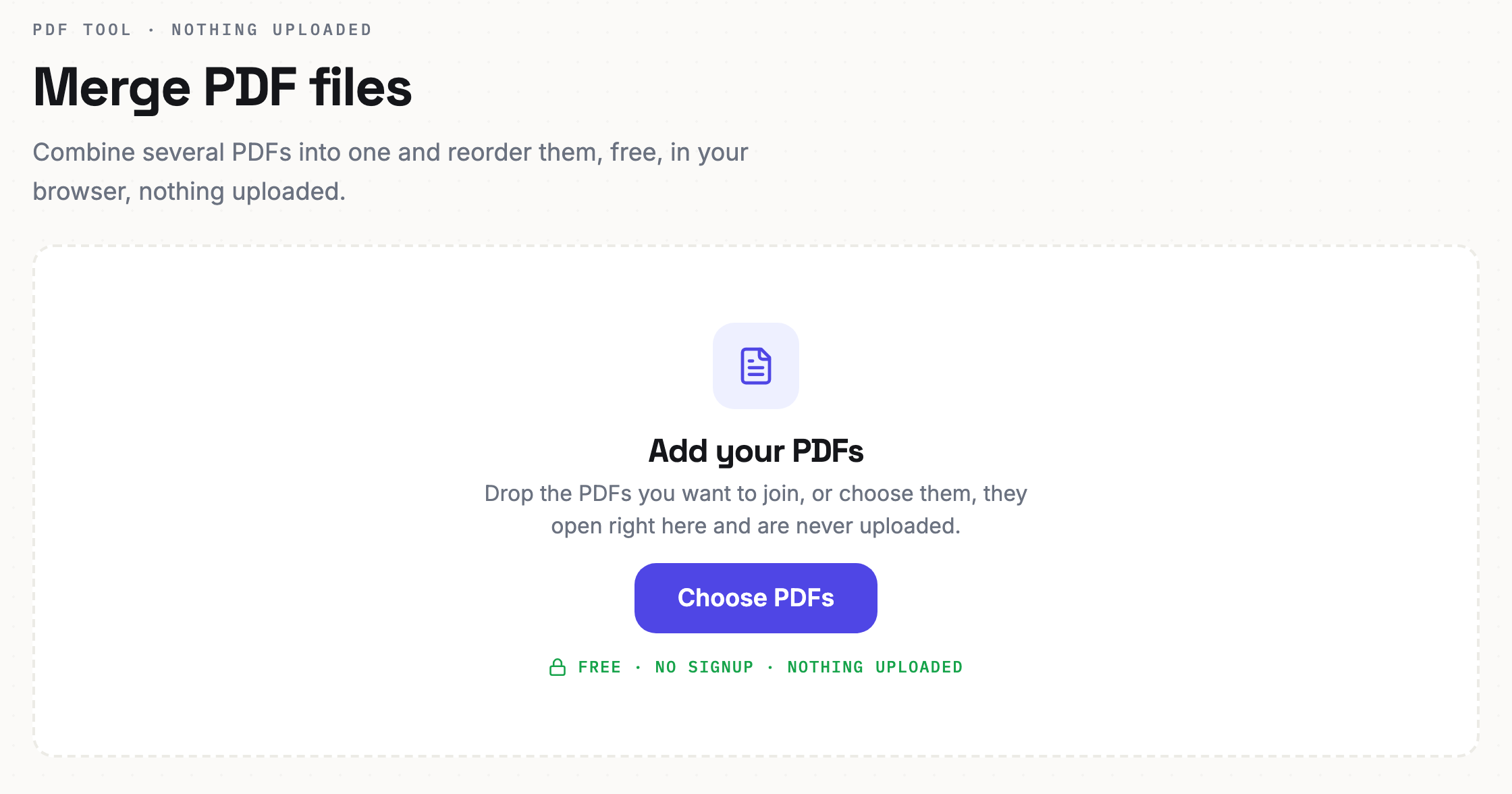
Reamly does not work that way. The merge happens inside your browser. Your files never leave your device, and it even works with your connection turned off.
Done in three steps
Drag and drop is all it takes on the merge screen.
- Open the merge PDF tool. The button below takes you straight there.
- Drop in your PDF files. Select several at once, or add them one at a time.
- Set the order and download. Drag the files up or down into the order you want, then hit merge to save a single PDF.
That is it. Depending on file size, it finishes in a few seconds.
Ordering and page tips
Before merging, prefix your filenames with 01, 02, 03. They will load in the right order automatically, which makes arranging them much faster.
- Mixed page orientation? Rotate everything at once after merging.
- Pages you do not need? Trim them first, then merge for a cleaner result.
- File too large? Compress the merged PDF to fit an email attachment limit.
Common questions
Is there a limit on how many files I can merge? There is no fixed cap. Merging a very large number of files at once may take a little longer depending on your device.
Are my files really not uploaded? Yes. Everything runs in your browser. You can confirm it yourself by turning on airplane mode.
Does it work on Mac and Windows? All you need is a browser. Chrome, Safari, Edge, and Firefox all work, and it behaves the same on iPhone and Android.
The more sensitive the document, the better it feels to skip the server entirely. Give it a try.